
Use Gun Diary on iPhone and iPad (iCloud sync)
Keep the same diary on your iPhone and iPad with iCloud: set up a second device, know how long the first sync takes, fix "not signed in" or a full iCloud, turn sync off, and sort out two Example Rifles.
Gun Diary keeps your diary in your own private iCloud, so the same firearms, sessions, groups, dope and photos appear on every iPhone and iPad signed in to your Apple Account. There’s nothing to switch on in the app: if iCloud is on for the device, Gun Diary syncs. Sync is free on every plan. This article covers setting up a second device and what to do when records don’t show up.
Before you start
- Both devices signed in to the same Apple Account, with iCloud on, in the iPhone’s or iPad’s Settings app.
- Some free iCloud storage. Records take little room; photos take more.
- A connection (Wi-Fi is best for a large diary with many photos).
Steps
Check sync on the device you already use
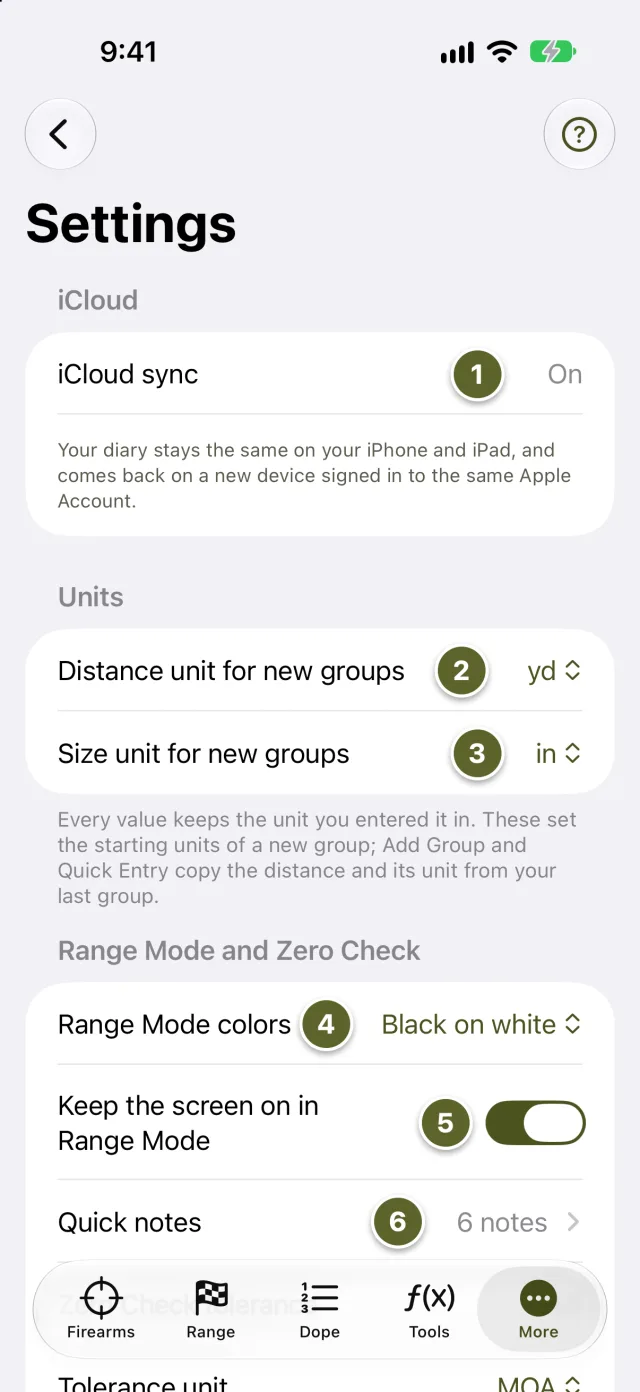
- Tap More > Settings.
-
Under iCloud, read iCloud sync. It’s a status, not a switch. On means “Your diary stays the same on your iPhone and iPad, and comes back on a new device signed in to the same Apple Account.”
-
If it says anything else (Not signed in to iCloud, Restricted or Not available), fix it in the device’s Settings app first (see “If something goes wrong”).
Set up the second device
- On the iPad (or second iPhone), check you’re signed in to the same Apple Account in the Settings app.
- Install Gun Diary from the App Store and open it.
- The Welcome screen shows once on each device. Read it and tap through.
- Tap More > Settings and check that iCloud sync says On.
- Keep Gun Diary open on Wi-Fi for a few minutes. Your firearms appear on the Firearms tab first; photos can take longer. A large diary with thousands of photos can take an hour or more the first time.
- Pro: you don’t buy it again. Tap More > Gun Diary Pro > Restore Purchases. See Free and Pro.
From then on, a change on one device shows on the other within a minute or so, whenever both have a connection. Each device keeps working without one; changes catch up when it reconnects.
Why it’s useful
A diary you can only read on one device is half as useful: you might log a session on the iPhone at the range and want to read your dope table on the iPad at home, or replace a broken phone and expect everything back. iCloud sync does that with no account to create and nothing for Setrik to hold, because your records go only to your own private iCloud.
Who uses it, and how:
- iPhone at the range, iPad at home: log on the phone, review groups and print reports on the bigger screen.
- Anyone replacing a phone: sign in to the new phone and the diary comes back by itself.
- Families sharing one iPad: a diary follows the Apple Account signed in, so each person’s diary stays their own.
- People who keep the diary on one device only: turn sync off for Gun Diary and make regular backups instead.
What’s on the screen
Example
You bought an iPad for reading your dope tables at the bench.
- On the iPhone, More > Settings shows iCloud sync On.
- On the iPad, you’re signed in with the same Apple Account. You install Gun Diary, open it, and tap through the Welcome screen. For a moment the iPad shows only the Example Rifle.
- A minute later your three firearms appear; the target photos follow over the next few minutes on Wi-Fi.
- The iPad had made its own Example Rifle before your diary arrived. Gun Diary notices there are two and quietly removes the extra one, so you see a single Example Rifle.
- More > Gun Diary Pro > Restore Purchases unlocks Pro on the iPad too.
Tips
- Sync is not a backup. A deletion syncs too, so a record deleted on the iPad is deleted on the iPhone. Make backups as well. See Back up and restore.
- Restore Recently Deleted on either device. Recently Deleted syncs, so a record you deleted by mistake can be restored from either device within 30 days. See Recently Deleted.
- Open the app now and then on each device. A device catches up when Gun Diary is open (and in the background when iOS allows).
- Free up iCloud storage before a big photo session if your iCloud is nearly full.
What it affects
- Every record, photo and document syncs, including Range Mode and Zero Check settings.
- Some choices stay on each device: the starting units for new groups, Personalize Your Diary switches, the Welcome screen and the Unit Converter’s remembered values.
- Turning sync off for Gun Diary keeps the diary that’s already on each device, but changes no longer reach the other.
If something goes wrong
- iCloud sync says Not signed in to iCloud. Open the device’s Settings app, tap Sign in, and sign in with your Apple Account. Then come back to Gun Diary.
- iCloud sync says Restricted or Not available. Check Screen Time (Content & Privacy Restrictions) or a work or school profile, and that iCloud is working in the Settings app. Until it’s fixed, the diary stays on this device only: make backups.
- My records aren’t on my iPad. Check that iCloud sync says On on both devices and that both use the same Apple Account (Settings app, your name at the top). Then keep Gun Diary open on Wi-Fi for a few minutes. Photos arrive after the records.
- Sync was working and stopped. Your iCloud may be full: in the Settings app, tap your name > iCloud and check the storage bar. Free some space (or buy more), then open Gun Diary again; nothing is lost while it waits.
- I want the diary on this device only. In the Settings app, tap your name > iCloud, find Gun Diary in the list of apps using iCloud and switch it off. Gun Diary’s own status line may still say On, because your account is signed in. Make backups from then on.
- I see two Example Rifles. The new device made its own Example Rifle before your diary arrived. Gun Diary removes the extra one by itself when it opens, comes back to the front or receives changes from iCloud; your own records aren’t touched. Still two? Close Gun Diary and open it again.
- A record says “Not found”. “This record was deleted or hasn’t synced to this device yet.” Wait a few minutes, or check Recently Deleted.
- I deleted the app and my diary came back. That’s sync working. To really start with an empty diary, see Start over.
Related
- Next: Back up and restore: a copy that doesn’t depend on iCloud.
- Settings: the iCloud sync status.
- Your records and your privacy: where your diary is kept and who can see it.
- Start over: clear the diary everywhere.
- Explore the Example Rifle.
- Learning path: Keeping your records safe.
- Words used here: iCloud sync, Example Rifle, backup.
Guides on this topic
Still stuck? In the app, open More > Help > Contact Support, or More > Settings > Support, which also has Send Error Log (the error log helps us find the problem), or email contact@setriksoftware.com. You can also browse the Help Center or the messages the app can show.