
Contact support and the error log
Email us from inside the app with the details we need already filled in, send the app's error log after a problem, and see exactly what the log holds (problems only, no records).
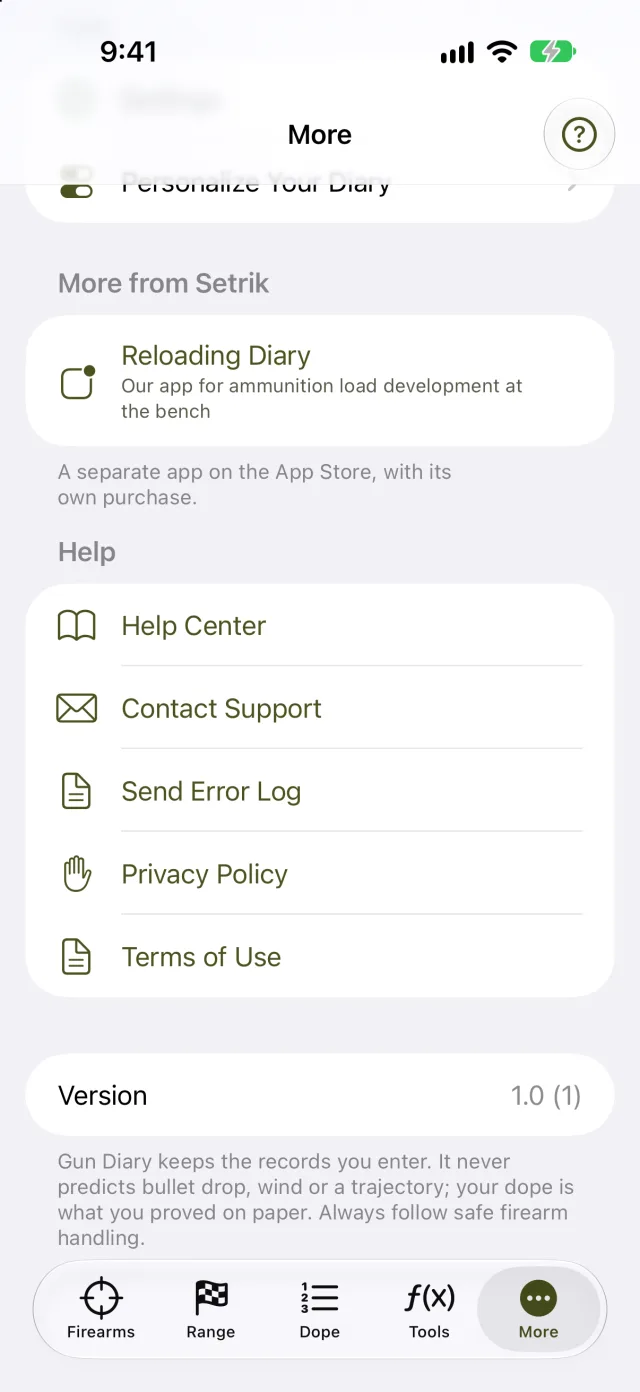
Contact Support opens an email to us (contact@setriksoftware.com) with your app version, iOS version and device model already filled in and the app’s error log attached. Send Error Log does the same, worded as an error report, for when something went wrong. You always see the email before anything is sent, and you can remove the log. Both are in More (under Help) and in More > Settings (under Support).
Steps
Ask a question or report a problem
-
Tap More > Contact Support (or More > Settings > Contact Support).
-
An email opens, addressed to contact@setriksoftware.com, with the subject “Gun Diary support (version 1.0 (1))” (your version) and the error log attached as “Gun Diary error log.txt”.
- Under “What happened (optional):”, write what you were doing and what you expected, like “I tapped Save on a group and the size didn’t change”.
- If you don’t want to send the log, tap and hold the attachment and delete it.
- Tap Send (the arrow at the top right). Or tap Cancel and Delete Draft to send nothing.
Send only the error log
- Tap More > Send Error Log right after a problem.
- The email’s subject is “Gun Diary error log (version …)” and it starts “Here is my Gun Diary error log.” Add a line about what happened if you can, then tap Send.
If your iPhone has no Mail account
- Contact Support opens your default email app with the subject and the version details filled in, but without the log.
- Send Error Log opens the share sheet with the log file (GunDiary-log.txt) instead. Send it with any app, or Save to Files and attach it to an email to contact@setriksoftware.com.
Why it’s useful
A good support request needs three things: what happened, which version and device it happened on, and what the app was doing at the time. The first only you can tell us; Gun Diary fills in the other two for you, so most problems can be answered in one reply instead of a back-and-forth.
Who uses it, and how:
- Something went wrong (a backup failed, a purchase didn’t unlock, iCloud stopped syncing): Send Error Log right away, while the details are in the log.
- A question the help center doesn’t answer: Contact Support, in your own words.
- A suggestion or a feature you’d like: Contact Support; you can delete the log first, it’s not needed.
- Privacy-minded users: read the log before sending (it’s a plain text file), or remove it.
What each option means
What the error log holds: a line each time the app starts (version and iOS version), and problems the app ran into and handled, like a failed backup, an iCloud sync failure, a purchase the App Store couldn’t confirm, or a PDF that couldn’t be made, each with the time and the place in the app’s code. A few normal events are noted too (iCloud set up, a purchase or restore finished). The log keeps only its newest part (up to about half a megabyte).
What it never holds: your records, names, serial numbers, purchase details, notes, photos, locations, dope, harvests or readings. Crashes themselves are reported to us by Apple, only if you allowed sharing with app developers in the iPhone’s Settings.
Example
You tap Make a Backup and get “The backup couldn’t be made: …”. You tap More > Send Error Log, write “Backup failed with the message above, about 600 photos, 3 GB free”, and tap Send. We see in the log which step failed and on which iOS version, and reply with the fix the same day.
Tips
- Send the log soon after the problem, before many more days of use push the old lines out.
- Say what you tapped, step by step. One sentence often tells us more than the log.
- Check the help first: the ? on the screen you’re on opens its article, with an “If something goes wrong” section.
- Mention your plan (free or Pro) for a purchase question; never send card details or passwords.
What it affects
Nothing in your diary. Sending an email shares only what you see in it. The log file stays on your device; sending it doesn’t clear it.
If something goes wrong
- Nothing happens when I tap Contact Support. There’s no email app set up on the device. Set up Mail in the iPhone’s Settings app, or write to contact@setriksoftware.com from another device.
- The email has no attachment. It was opened in another email app (no Mail account on the device). Use Send Error Log, which then shares the file, and attach it yourself.
- The email didn’t arrive. Check your Mail outbox; the email is sent by your own mail account, not by Gun Diary.
- I’m worried about what’s in the log. Open the attachment in the email before sending (tap it), or save it to Files and read it. Remove it if you prefer.
Related
- Next: The More tab.
- Settings, Free and Pro, Back up and restore.
- Words used here: error log.
Still stuck? In the app, open More > Help > Contact Support, or More > Settings > Support, which also has Send Error Log (the error log helps us find the problem), or email contact@setriksoftware.com. You can also browse the Help Center or the messages the app can show.