
"Calculator #23: Drill Times and Hit Factor"
Add up a draw and split times, see the average split, and work out a USPSA hit factor or an IDPA final time.
Drill Times and Hit Factor (calculator #23) does the arithmetic after a run on the shot timer: draw plus splits gives the total time; the splits give an average split; points and time give a USPSA hit factor; and time plus points down and penalties gives an IDPA final time. It’s plain arithmetic, no estimates.
Steps
- Tap the Tools tab. Under Competition, tap Drill Times and Hit Factor.
- In Times (seconds), type the Draw (first shot) time and the splits, separated by semicolons, in the splits field (it shows “Splits, like 0.24; 0.22” when empty). Spaces or commas also separate them.
- In Score, type what applies: Points (USPSA) for a hit factor; Points down (IDPA) and Penalties (s) for an IDPA time.
-
Read Result: Total time, Average split, Hit factor (USPSA) and Final time (IDPA).
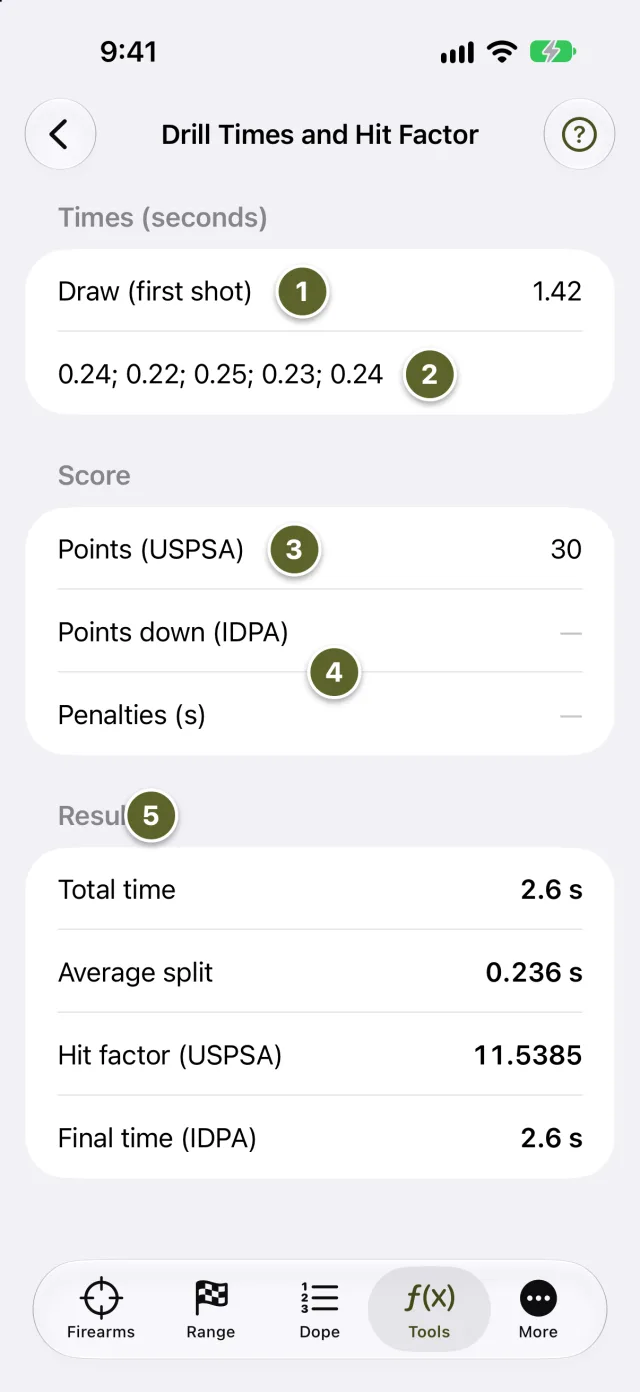
Numbers on the picture: 1 Draw (first shot), 2 the splits, 3 Points (USPSA), 4 Points down (IDPA) and Penalties (s), 5 Result.
Nothing is saved. To keep a run, record it as a drill run in a session.
Why it’s useful
A shot timer gives you a string of numbers; what you want to know is the total, how consistent the splits were, and what the run would score. Doing that in your head between runs is slow and error-prone. This screen does it as you type.
Who uses it, and how:
- USPSA and IPSC shooters: hit factor is points per second; see how a faster run with a few lower-scoring hits compares with a slower, cleaner one.
- IDPA shooters: final time is raw time plus one second per point down plus penalties; see what a point down costs you.
- Defensive and carry-gun shooters: time your draw and first shot, and watch your average split come down over a season.
- Instructors: quick math for students’ runs without writing anything down.
- New shooters: learn what draw, split and hit factor mean by playing with the numbers.
What each option means
A result shows a dash when what it needs is missing: no times, no points.
Example
- The screen opens with the app’s tested example: draw 1.42 s, splits 0.24; 0.22; 0.25; 0.23; 0.24, 30 points. Total time 2.6 s, Average split 0.236 s, Hit factor (USPSA) 11.5385, Final time (IDPA) 2.6 s.
- Score the same run IDPA style with 3 points down: type 3 in Points down (IDPA). Final time (IDPA) becomes 5.6 s (2.6 + 3).
- A faster run: draw 1.30 and splits 0.20; 0.21; 0.19; 0.22; 0.20 total 2.32 s, but with 26 points the hit factor is 26 ÷ 2.32 = 11.2069: lower than the slower, cleaner run.
Tips
- Copy splits straight from the timer’s review screen, one after another, separated by semicolons.
- Watch the average split, not just the total. A steady average split shows control; one long split shows a transition or reload to work on.
- Use hit factor to choose between speed and accuracy on a stage; it rewards whichever gives more points per second.
- Keep the runs. Drill runs in a session store times, points and hits, and the competition and drills report lists them.
What it affects
Nothing. To keep a drill run with its times and score, record it in a session; see Drill runs.
If something goes wrong
- Total time shows a dash. Type a draw or at least one split.
- Average split shows a dash. Type at least one split.
- Hit factor shows a dash. Type Points (USPSA), and make sure there’s a time above zero.
- A split seems missing. Separate splits with semicolons, commas or spaces; “0.24 0.22” works, “0.240.22” doesn’t.
- Points down didn’t change the time much. Each point down is one second, under the current IDPA rule the app uses.
Related
- Next: Elevation Left.
- Drill runs, Competition and drills report.
- Hit Rate and Scores, Energy, Momentum, Power Factor (for power factor).
- The Tools tab.
- Words used here: hit factor, split, draw, points down, shot timer.
Guides on this topic
- Hit Factor: How USPSA-Style Scoring Works, with Worked Examples
- IDPA Scoring Explained: How Time Plus Works, with Examples
Still stuck? In the app, open More > Help > Contact Support, or More > Settings > Support, which also has Send Error Log (the error log helps us find the problem), or email contact@setriksoftware.com. You can also browse the Help Center or the messages the app can show.