
"Calculator #6: Point-of-Aim Offset"
See a group's offset from your aim in inches, centimeters, mil and MOA at once, with the clicks that move it back.
Point-of-Aim Offset (calculator #6) shows how far a group’s center is from where you aimed, in every unit at once (inches, centimeters, mil and MOA), plus the turret clicks that move the point of impact back to the point of aim. Geometry only.
Steps
-
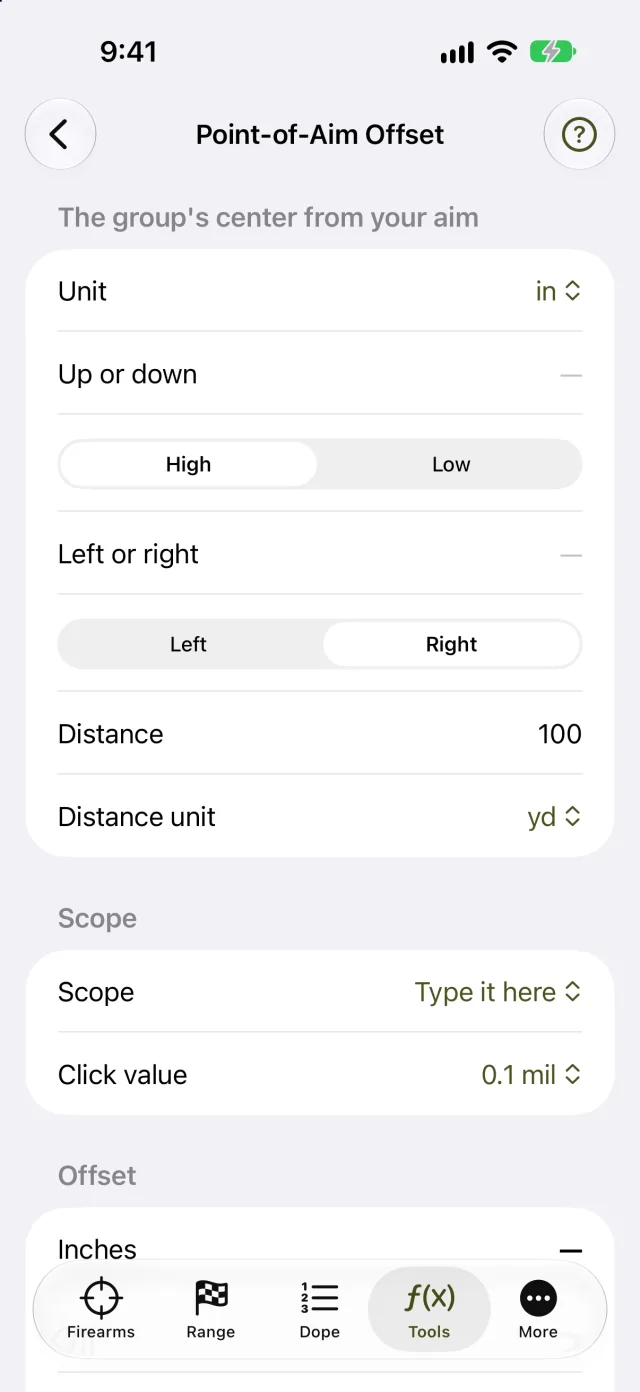
On the Tools tab, under Angles and clicks, tap Point-of-Aim Offset.
-
Under The group’s center from your aim, pick the Unit you measured in: in, mm, cm, or mil or MOA if you read it in the reticle.
- Type Up or down and pick High or Low; type Left or right and pick Left or Right. Leave one blank if that axis is on.
- Check the Distance and Distance unit (100 yd to start).
- Under Scope, pick your scope in Scope for its click value, or pick a Click value.
-
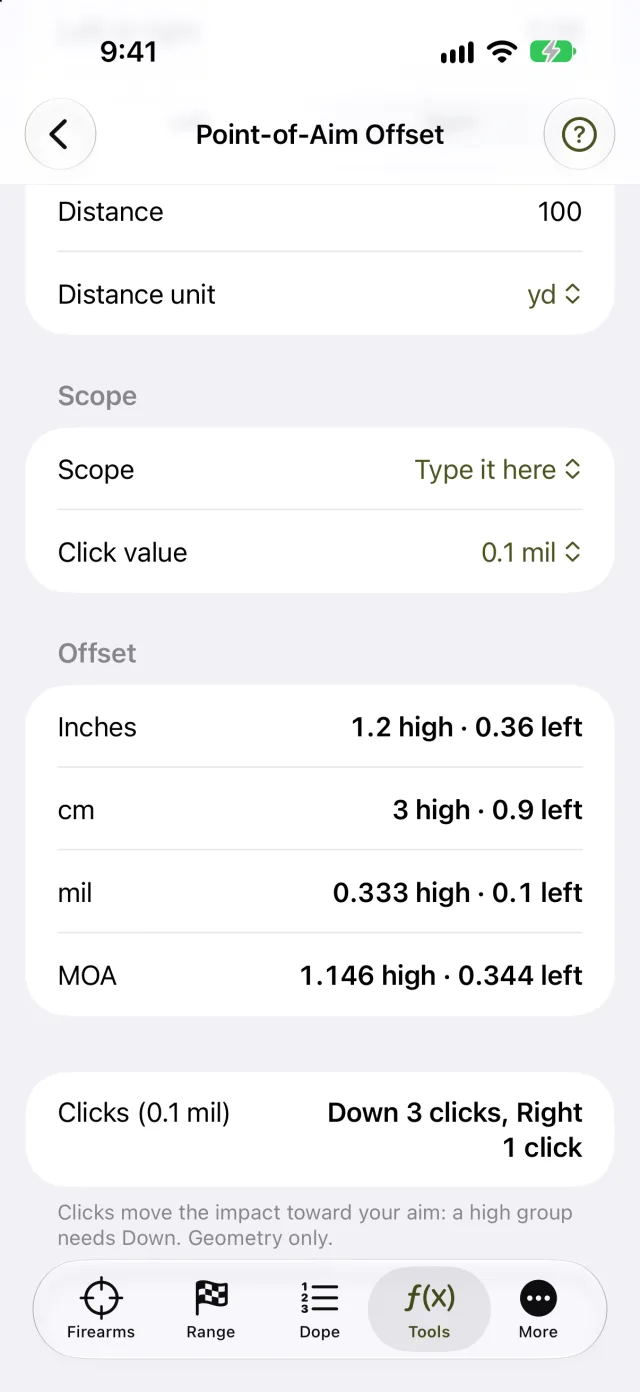
Read Offset (the same offset in Inches, cm, mil and MOA) and the clicks row below it.
Why it’s useful
People describe misses in whatever unit is handy: inches on paper, centimeters on a metric target, mils in the reticle. This calculator shows them all side by side, so you can talk to a friend in inches, write your notes in MOA and dial your mil turret, from one measurement.
Who uses it, and how:
- Sighting in: the clicks row tells you what to dial after a group.
- Hunters with mixed habits: “two inches high at 100” in mil and MOA, for a card or a turret.
- Coaches and spotters: a student’s miss read in mil, turned into inches to explain it.
- Metric shooters: type mm or cm at meters and read the angles.
What each option means
Results:
- Inches, cm, mil, MOA: the offset, each with “high/low” and “left/right”.
- Clicks (0.1 mil) (with your click value in the brackets): what to dial, like “Down 3 clicks, Right 1 click”.
The formula, in plain words: a length becomes an angle as size ÷ distance; an angle becomes inches as angle x distance. Clicks = angle ÷ click value, rounded to whole clicks, in the opposite direction to the group: a high group needs Down (the footer says so).
Example
Your Mountain Rifle’s first group at 100 yards is centered 1.2 inches high and 0.36 inch left. The scope has 0.1 mil clicks.
- Unit in; Up or down 1.2, High; Left or right 0.36, Left; Distance 100 yd; Click value 0.1 mil.
- Offset:
- Inches: 1.2 high · 0.36 left
- cm: 3 high · 0.9 left
- mil: 0.333 high · 0.1 left
- MOA: 1.146 high · 0.344 left
- Clicks (0.1 mil): Down 3 clicks, Right 1 click.
With a 1/4 MOA scope, the same group needs Down 5 clicks, Right 1 click.
Tips
- For a custom click value (not in the list), use Sight Clicks, which has Custom; once used there, this calculator starts with it too.
- For several shot positions, use Zero and Sight-In Helper: it finds the center for you.
- A recorded group already shows this. Groups with a point-of-aim offset show it in inches, cm, mil and MOA and the clicks. See A group record.
What it affects
Nothing is saved. The Click value starts on the one remembered from Sight Clicks; a change you make here isn’t remembered.
If something goes wrong
- A row shows a dash. That axis is blank, or the Distance is blank or 0 (needed to convert between lengths and angles).
- “No change (under half a click)”. You’re within half a click on both axes.
- The clicks go the wrong way. High/Low and Left/Right describe where the group is, not which way to dial.
- My scope isn’t listed. Only scopes with optic settings on a firearm’s current setup are listed. See Optic settings.
Related
- Next: Group Statistics.
- Sight Clicks, Zero and Sight-In Helper, Record a group.
- Learning path: Sighting in a new scope.
- Words used here: point of aim, point of impact, click value, mil, MOA.
Gun Diary keeps records you enter and does arithmetic on them. It never predicts a trajectory; confirm every hold by shooting it at the range, and always know your target and what is beyond it.
Still stuck? In the app, open More > Help > Contact Support, or More > Settings > Support, which also has Send Error Log (the error log helps us find the problem), or email contact@setriksoftware.com. You can also browse the Help Center or the messages the app can show.