
Groups, targets and photosGun Diary Pro
Make target sheets
Print your own target sheets as a PDF, each with its own target number and QR code, with the firearm, ammunition and date filled in or left as lines to write on, so every paper target goes back to the right record.
Pro. Gun Diary makes printable target sheets as a PDF. Each sheet is a new target record with its own number (like T014), printed in large type at the top and in a QR code. After you shoot it, scan the code and the right target opens, ready for its photo and groups. You choose the layout, and for each line (firearm, ammunition, date, distance, weather, chronograph, notes) whether the diary fills it in, leaves a line for your pen, or leaves it off.
Steps
-
On the Range tab, tap Target Sheets. The Target Sheets screen lists your latest targets.
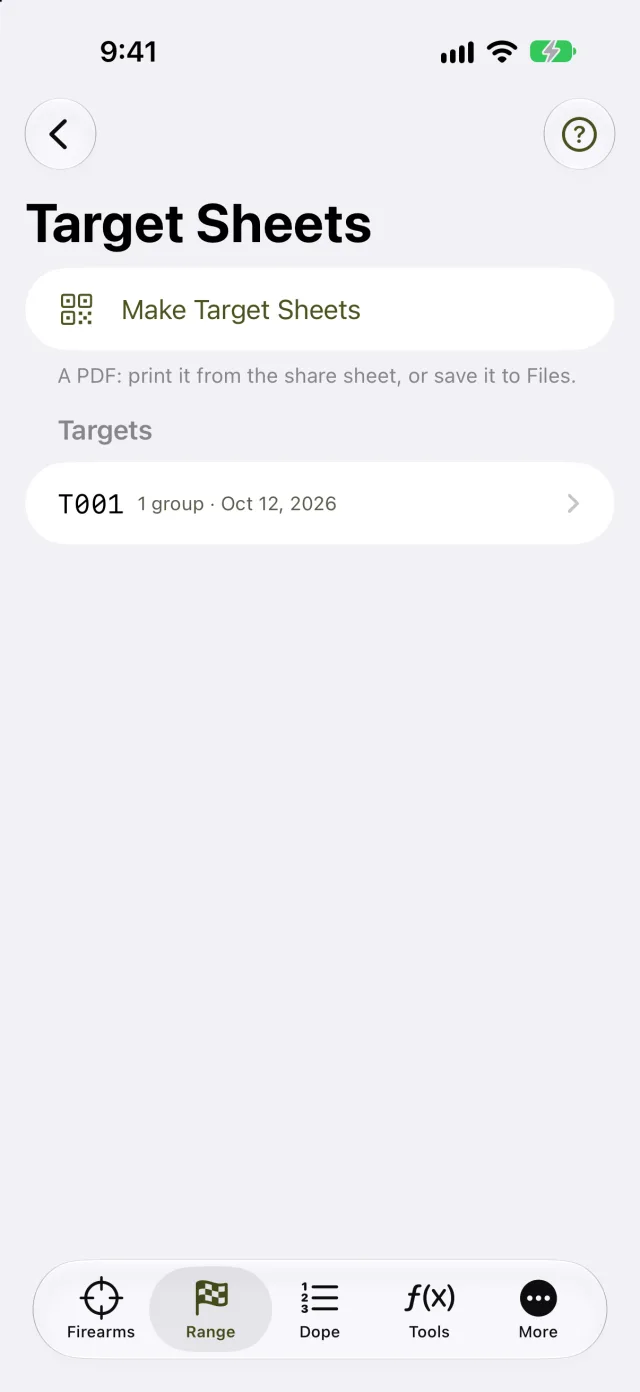
-
Tap Make Target Sheets. The Target Sheet form opens.
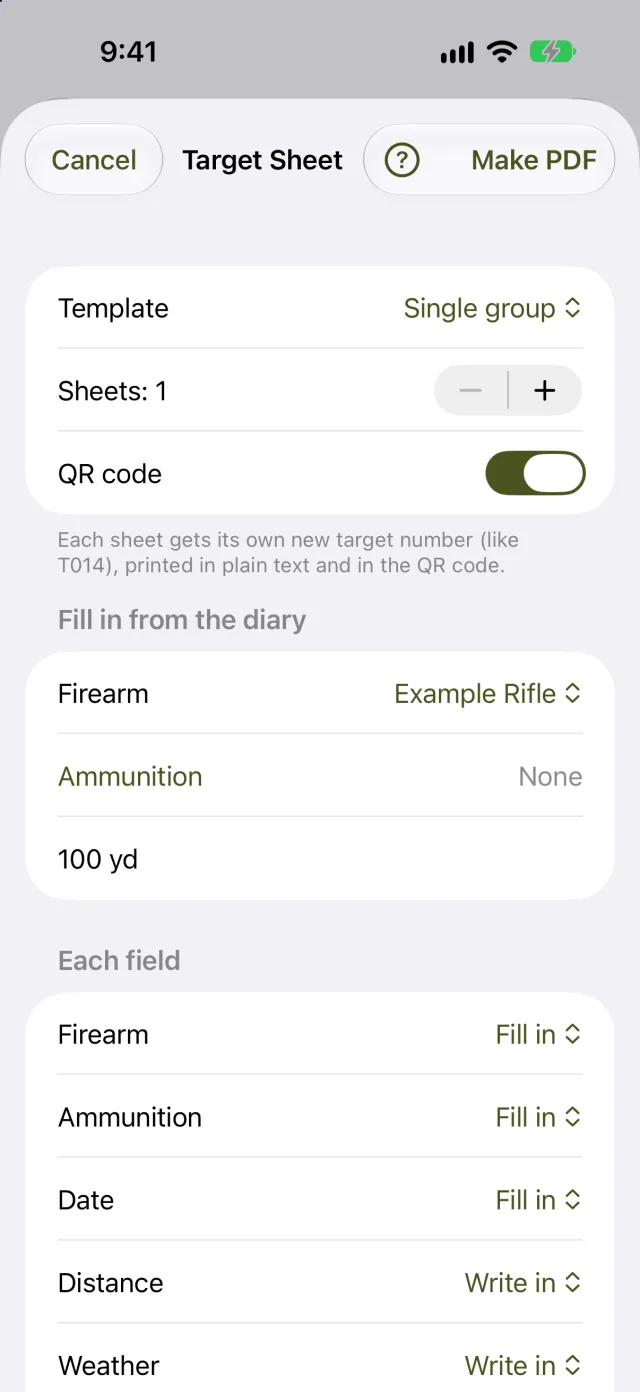
-
Pick a Template: Single group, Several groups, Competition or Blank grid. For Several groups and Competition, set Areas per sheet (2 to 6).
- Set Sheets to how many you want (1 to 20). Each sheet gets its own number.
- Leave QR code on, unless you only want the printed number.
- Under Fill in from the diary, pick the Firearm and Ammunition (or leave None), and type the distance in “Distance (like 100 yd)”.
- Under Each field, choose Fill in, Write in or Hide for Firearm, Ammunition, Date, Distance, Weather, Chronograph and Notes.
- Tap Make PDF. The PDF opens in a preview.
-
Tap Share and choose Print, or Save to Files to print later. Tap Done to close the preview.
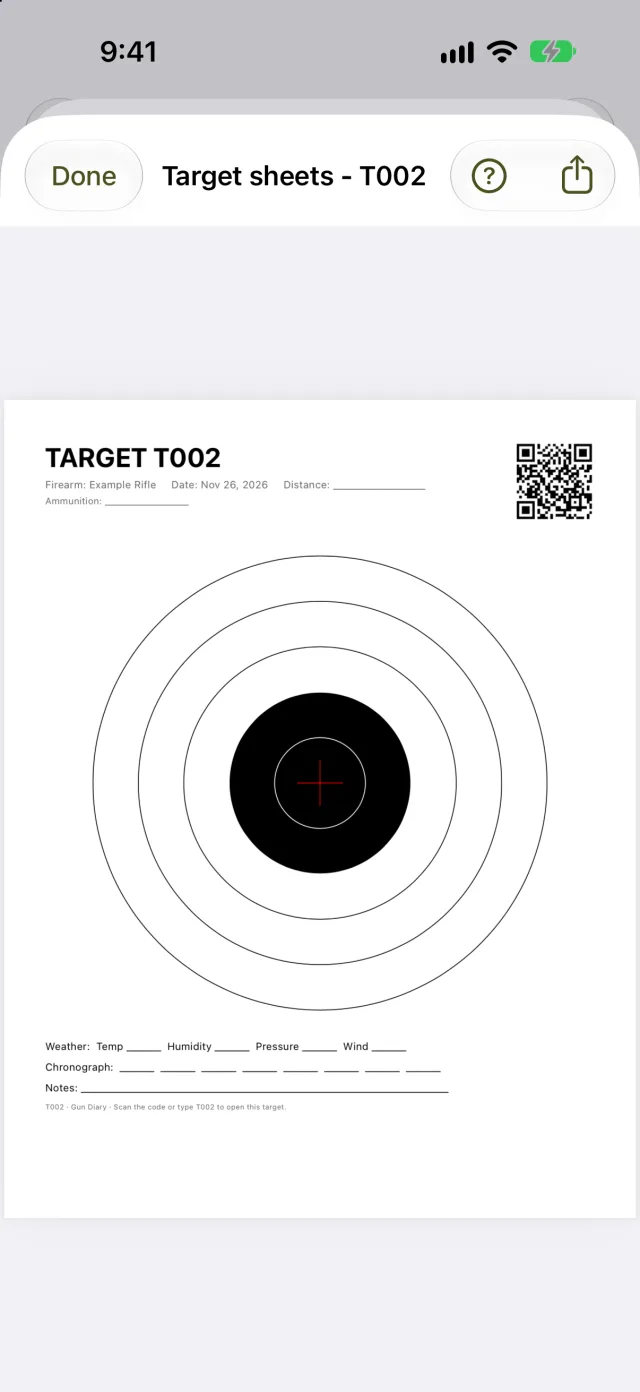
To reprint one target’s sheet with the same number and QR code: open the target, tap ••• > Target Sheet PDF, then Make PDF.
Why it’s useful
The hardest part of keeping range records is matching paper to records afterwards. A sheet that carries its own number solves it: whatever order the sheets come home in, one scan opens the right target. Filling in the firearm and ammunition before you go means less writing at the bench, and lines for weather and velocities make sure you don’t forget them.
Who uses it, and how:
- Ammunition testers: Several groups with four areas, one ammunition per area, with “Group 1 ID ____” under each to write the group number.
- Shooters sighting in: a Single group sheet with the firearm, ammunition and distance filled in; scan it at home and measure the group from the photo.
- Competitors and drill practice: Competition prints areas labelled “Stage 1 Score ____” for each stage.
- Long-range and benchrest shooters: Blank grid prints a plain grid you can add your own aiming marks to, and helps you read shot positions.
- Clubs and instructors: print a batch of numbered sheets (up to 20 at a time), hand them out, and match each one to a student’s session later.
- Privacy-minded owners: serial numbers never print on target sheets, and the QR code holds only a hidden ID, so a sheet left at the range says nothing about your guns.
What each option means
Template | Choice | What’s printed | |—|—| | Single group | One large ringed target with a black center and a small red cross | | Several groups | 2 to 6 smaller targets, each labelled “Group 1 ID ________” and so on | | Competition | 2 to 6 targets, each labelled “Stage 1 Score ____” and so on | | Blank grid | A light grid over the page instead of a target |
Other settings | Setting | What it does | Starts as | |—|—|—| | Areas per sheet | How many targets on a Several groups or Competition sheet: 2 to 6 | 4 | | Sheets | How many sheets (new targets) to make: 1 to 20. Not shown when reprinting | 1 | | QR code | Prints the QR code at the top right | On | | Firearm | The firearm whose name fills the “Firearm:” line | The target’s or session’s firearm, or None | | Ammunition | The ammunition that fills the “Ammunition:” line | The target’s or session’s ammunition, or None | | Distance | Text for the “Distance:” line, like 100 yd | Blank |
Each field: Fill in prints what the diary knows (a line when it knows nothing); Write in leaves a line for your pen; Hide leaves it off. Firearm, Ammunition and Date start as Fill in, the others as Write in. Weather prints blanks for temperature, humidity, pressure and wind; Chronograph prints eight blanks for velocities; Notes prints a line. For these three, Fill in and Write in both print the blank lines.
On every sheet: “TARGET” and its number in large type, the lines you chose, the QR code, and at the bottom the number again with “Scan the code or type” the number “to open this target”. Sheets are US Letter size (8.5 x 11 in).
Example
You’re testing four kinds of 6.5 Creedmoor ammunition with the Mountain Rifle next Saturday.
- Range > Target Sheets > Make Target Sheets.
- Template Several groups, Areas per sheet 4, Sheets 3.
- Firearm Mountain Rifle, Ammunition None (you’ll write it per area), distance “100 yd”.
- Each field: Ammunition Hide, Chronograph Write in.
- Make PDF > Share > Print.
Three new targets are made, T021, T022 and T023, each printed with its number, QR code, “Firearm: Mountain Rifle”, the date, “Distance: 100 yd”, and four areas labelled Group 1 to Group 4. At the range, write each group’s ammunition next to its area. At home, scan T021, photograph it, and mark a region for each group. See Scan a target.
Tips
- Print at actual size (100%, not “fit to page”) so the sheet looks as designed.
- Don’t use the printed rings as a known size for measuring unless you’ve measured them on paper: printers scale pages differently. Put a ruler in the photo instead.
- New sheets aren’t tied to a session. Make them from Target Sheets; after shooting, scan a sheet and add its groups to the session you pick. Reprinting a target (••• > Target Sheet PDF) only reprints that one target, keeping its number and QR code; it doesn’t make new numbered sheets.
- Print a few extra and keep them in your range bag; unused targets just wait in the list.
- Write group numbers in the ID box if you recorded the groups at the bench, so marking regions at home is quick.
What it affects
- New targets: each sheet makes a new target record with the next number, dated today, before you shoot it. It’s listed on the Target Sheets screen and can be scanned. Sheets made from the Target Sheets screen belong to no session until groups are added.
- Reprinting keeps the target’s number and QR code (“Reprinting keeps target T014’s number and QR code.”).
- Target numbers are fixed once printed: a number on paper always opens the same record.
- Nothing else: no groups, sessions or rounds are made.
If something goes wrong
- Make PDF opens the Pro screen: “Target sheets are part of Gun Diary Pro”. Printing sheets needs Gun Diary Pro. Without it, write numbers on any paper target and use Scan Target, which is free. See Compare Free and Pro.
- There’s no Target Sheets tile, or no Target Sheet PDF in a target’s menu. Target Sheets is turned off in Personalize Your Diary. Turn it back on there.
- I made more targets than I printed. Each Make PDF makes the sheets’ targets. Unused ones do no harm; delete them from the target’s ••• menu if you like.
- The printed target looks smaller or bigger than expected. Your printer scaled the page. Print at 100% (actual size).
- The printer prints on A4. The PDF is Letter size; most printers fit it to A4 with a small margin change. Measuring from the printed rings isn’t reliable either way.
- The Firearm line is blank. Firearm is None, or the field is set to Write in.
Related
- Next: Scan a target.
- A target and its groups, Mark group regions on a target.
- Save and share PDF reports, Personalize your diary, Compare Free and Pro.
- Learning path: Testing factory ammo.
- Words used here: QR code, target, group, Pro.
Still stuck? In the app, open More > Help > Contact Support, or More > Settings > Support, which also has Send Error Log (the error log helps us find the problem), or email contact@setriksoftware.com. You can also browse the Help Center or the messages the app can show.